


Image Extender
Upload a photo, pick the frame you want, and the image extender paints new scene beyond the original edges while the part you started with stays exactly as it was.
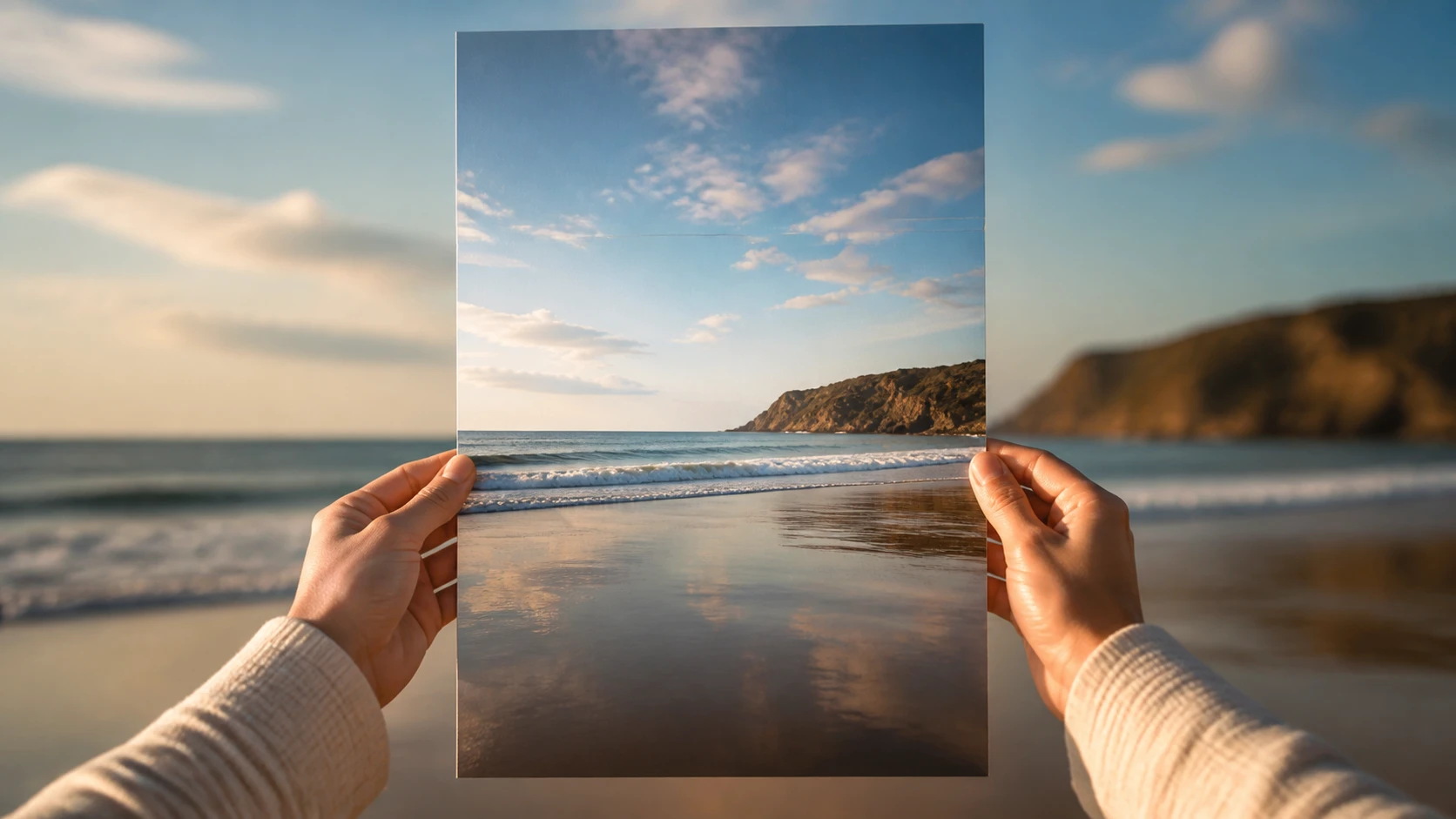
From Upload To The Frame You Need
Three steps take a tight shot and give it the frame you actually need.
Upload The Photo You Want Extended
Drag in or select one picture in JPG, PNG, or WEBP. The photo you bring into the image extender is the anchor, and everything it adds grows outward from its edges.
Pick A Ratio, Add A Line If You Like
Choose the target aspect ratio, from a square 1:1 to a wide 16:9 or a tall 9:16, including presets for common social platforms. If you want a say in what fills the new space, type one line describing it; skip the typing and the image extender fills the area on its own.
Generate, Compare, And Download
Run it and the image extender returns several versions at once, each reading the light, texture, and perspective at your photo's border. Pick the most natural one and download it at up to 2K or 4K, or refine with another line and run it again.
Where An Image Extender Comes In Handy
A few everyday moments where reaching for the image extender beats cropping the photo.
Change Aspect Ratio Of Image
One shot has to run as a square post, a wide banner, and a tall story, each a different shape. Cropping loses your subject and stretching warps it, so the image extender paints the missing strips instead and every version keeps the whole scene.
Extend Wallpaper
A picture you love sits a little short of filling your screen, and moving it to another device leaves gaps down the sides. Add matching scenery at the edges so one background fits several screen sizes cleanly.
Product Shots For Every Placement
An online store needs the same product as a main tile, a hero banner, and a detail strip. The original was framed tight, so the image extender adds clean background around it to leave room for a price tag or a promo line.
Covers And Thumbnails With Breathing Room
A cover image crowds its subject against the edge, leaving nowhere for a title to sit. Adding space around the shot opens a calm margin where headline text and a logo finally fit.
Who Puts The Image Extender To Work

Sellers Reframing Product Photos
Shop owners shoot tight and then hit a platform layout that needs a different shape. Rather than reshooting, they extend the frame outward and keep clean space for promo text around the product.
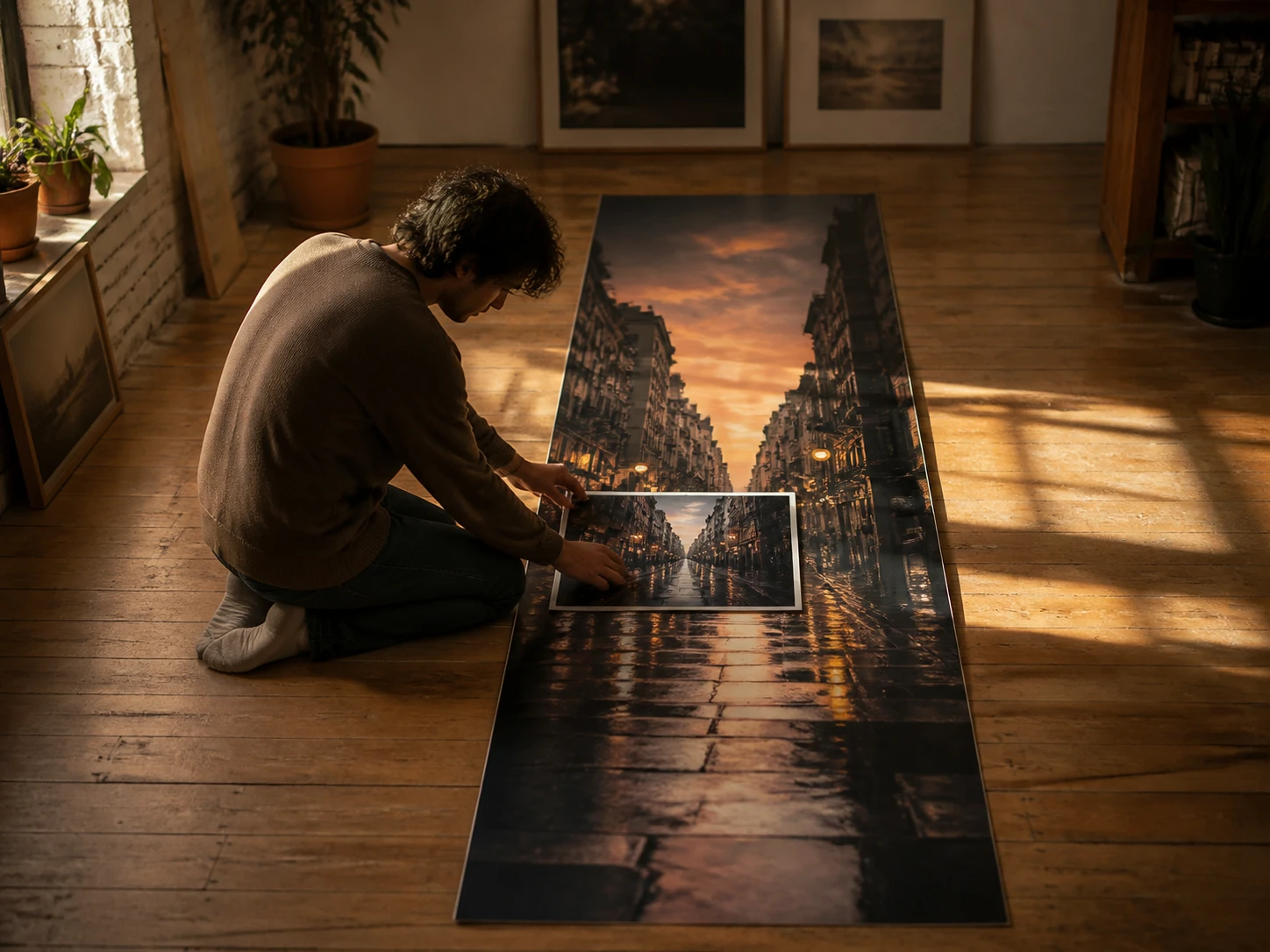
Creators Posting Across Formats
One piece of content has to land as a square feed post and a vertical story on the same day. Content makers widen or heighten the frame instead of recutting the shot each time.
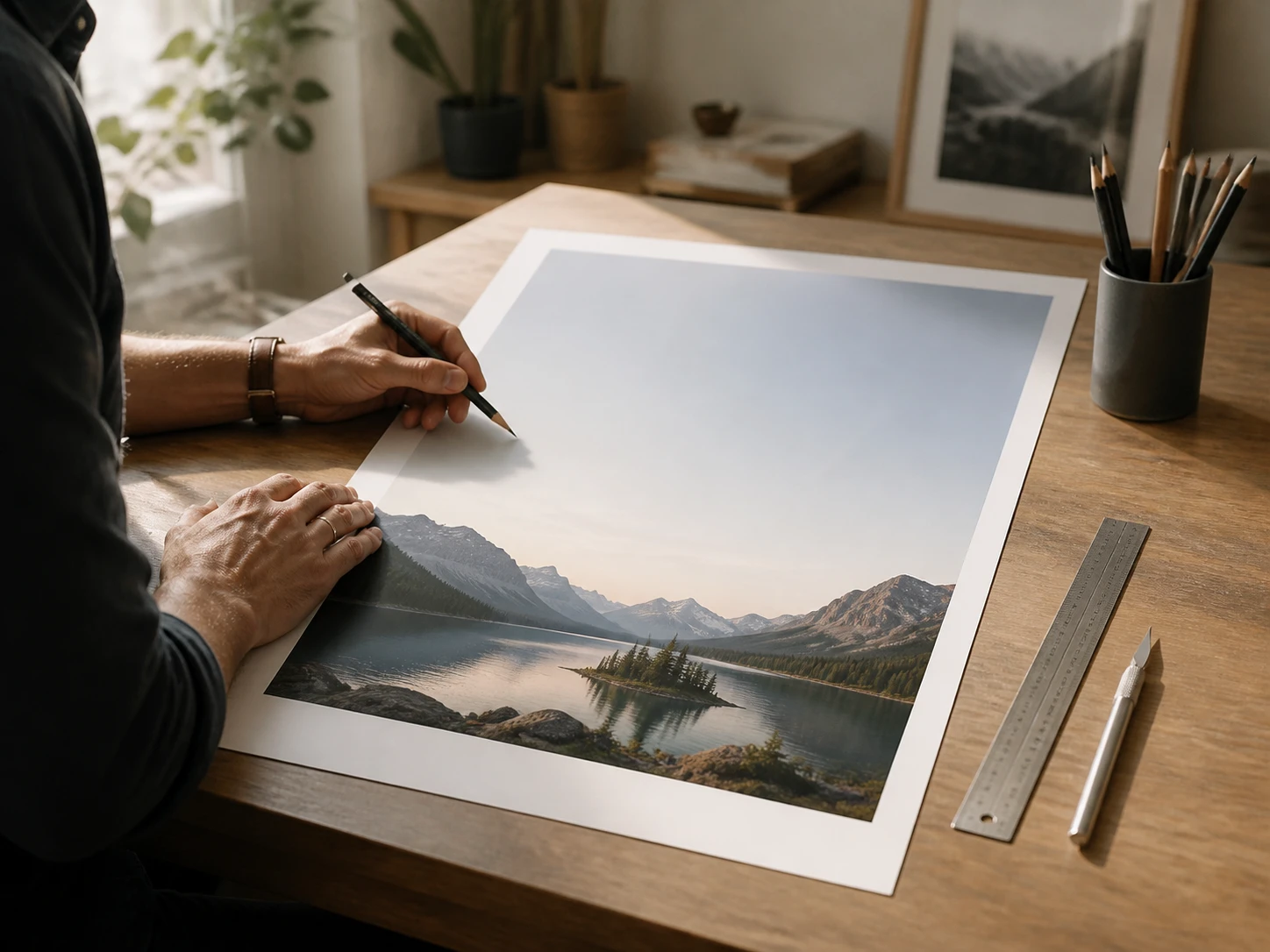
Designers Making Space For Type
Layout artists get a supplied image that runs a little short for the canvas, leaving the headline nowhere to go. They paint extra background at the margins so type and graphics have somewhere to breathe.
What You Get From The Image Extender
Inside the image extender, the pieces that make reframing a photo feel controlled instead of guessed.
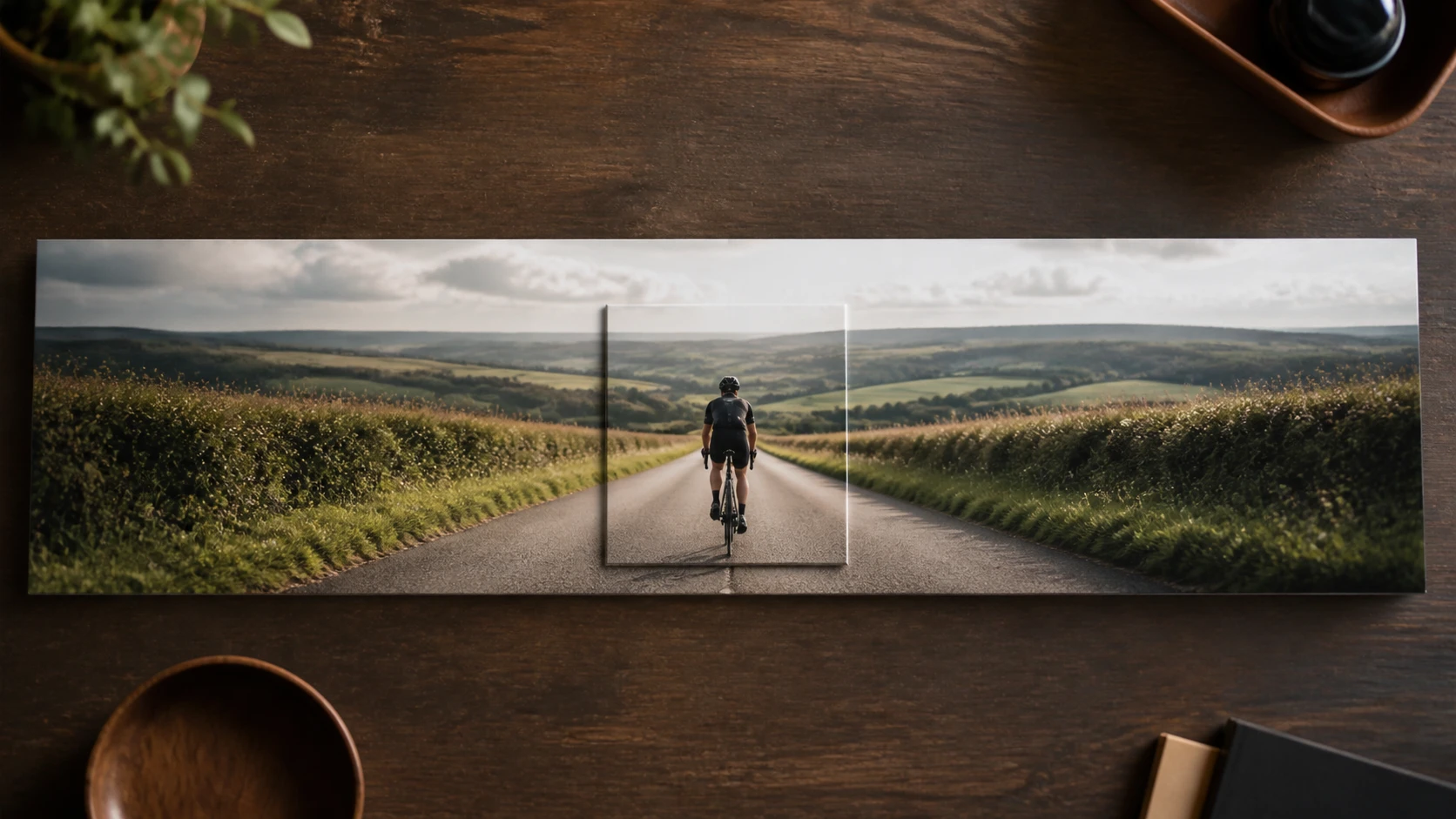
Change The Frame Without Cutting
Turn a wide shot tall or a square wide by adding scene, so your subject never gets cropped or warped. This is where an image extender differs from a plain crop: you extend image content outward instead of cutting it.
Say What Fills The New Space
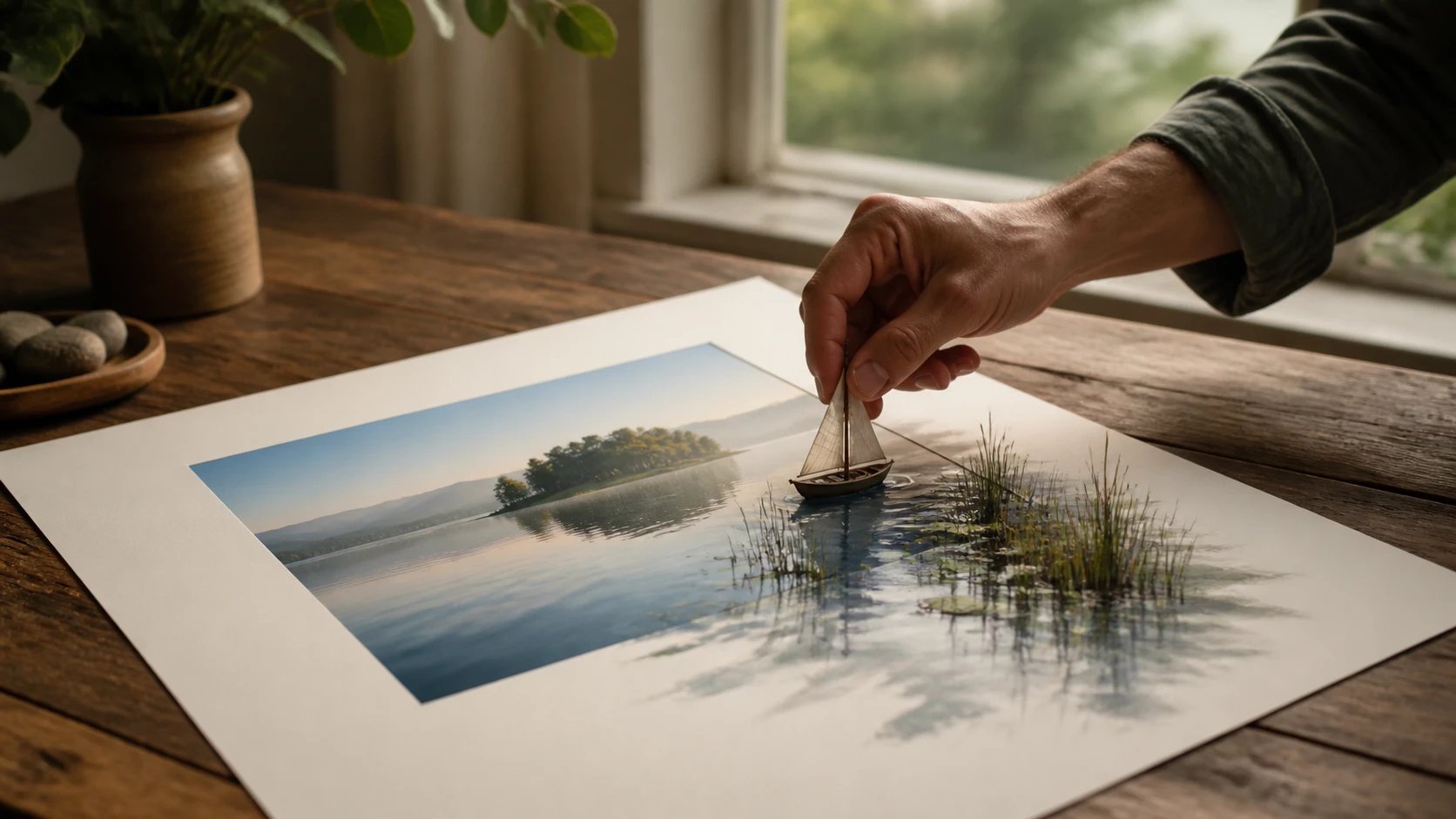
Want a particular something in the added area? Describe it in a line and the image extender matches it; prefer not to type and the one click option fills the space for you. This AI image extender with prompt keeps both paths open.
Your Original Stays Untouched
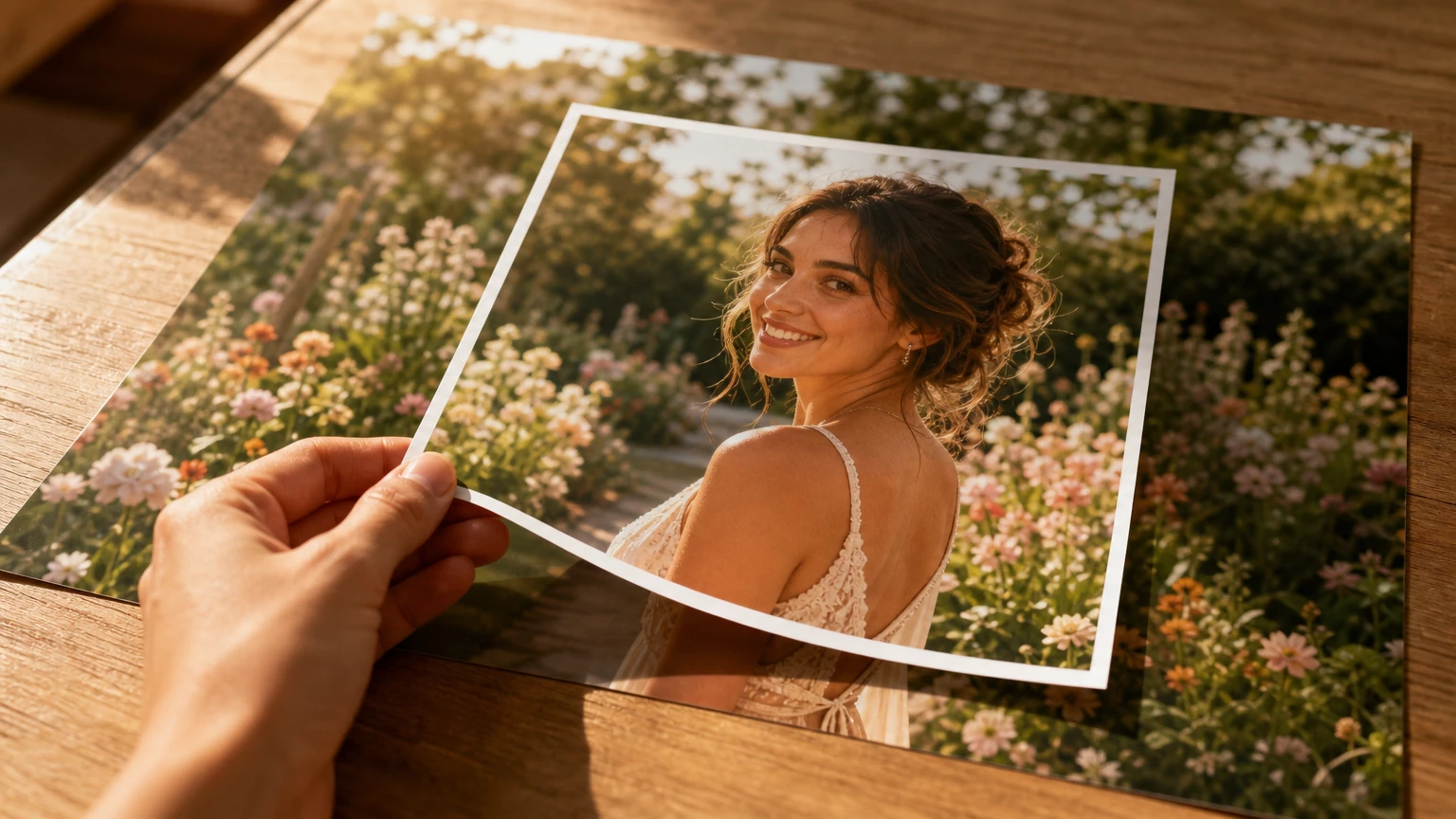
Every pixel you uploaded is kept exactly as it was; the image extender only paints outside the old border. That is why growing the frame outward never quietly repaints the face or product at the center.

New Edges That Match The Old
The added area follows the light, color, texture, and perspective at your photo's border, so it reads as one continuous picture rather than a background pasted on top. Several versions come back at once so you can pick the closest match, exported up to 2K or 4K in the browser.
Common Questions About Extending Photos
Edit Your Photo Into Any Frame
EditImage works as an online image extender right in your browser, so upload a photo and give it the frame you need.
Get Started